Saturday, April 13, 2013
Totally Connected Classroom
While I was checking out my Diigo library in bed one morning (killing time before I really have to get my day started), I found this blog post about a truly connected Kindergarten classroom. This teacher uses her smartphone, Facebook and FaceTime to keep parents apprised of their students' activities throughout the day. Wile I think that is really cool, I also wonder how she can possibly dedicate enough time to teaching her students while also managing all these updates. Check out her blog, Kindergarten Diva, and let me know what you think. How can she possibly have time for all of that??

Tuesday, March 12, 2013
Monday, March 4, 2013
I Do Not Like to Write (Reflection via Web 2.0)
I Do Not Like to Write by Elena Thibodeau on GoAnimate
Animation Software - Powered by GoAnimate.
Sunday, March 3, 2013
Google Tries to Get Game (Reflection 2.0)

What product am I talking about? Google Story Builder. At first, it seemed like it was being advertised as a digital storytelling product but when I opened it to see what it was like, it was actually nothing like PhotoStory or Animoto and any other product like that. There are no graphics. You don't get to import your own music. It's just text set to preloaded, Google-provided music.
They (Google) call it collaboration. I'm not sure I see the collaborative part. They call it a story builder. I'm not sure I see that. Maybe I'm just not understanding their intention. Even Educational Technology and Mobile Learning seems to talk about the product as more than what I've found (that's where I found the link to this particular program). They claim that the product "allows you to create mini-movies or video stories with the feel of Google Docs. You can also personalize the videos you create using the characters, story, and even music of your choosing and when you finish you can share your final product with others". Mini-movies? Video stories? If you figure out what they mean by that, can you please let me know? Because quite frankly, I'm confused.
Here's a video of Google's idea of what their program can be used for:
Here's a version of my class reflection using Google Story Builder (to the best of my understanding): Class Reflection
iMovie Makes iMagic
Among the uses we are most familiar with was digital storytelling. The post also mentions using iMovie to create visual reports, book reports/trailers, and use it to provide students with out-of-class trips (like an in-class field trip).
While I mentioned previously that I didn't use iMovie, I'm sure I could use PhotoStory to do any of the above-mentioned activities too.
Just some food for thought.
Below is a video narrated by a student explaining how to use iMovie.
Tuesday, February 26, 2013
Lewis and Clark's Corps of Discovery
So I've done it. I've gone and created a digital story that I will use to introduce Lewis and Clark's exploration of the Louisiana Purchase and beyond to my students. Because I have students who are English Language Learners and students who struggle with comprehension, I will use this video to give my students a preview of Lewis and Clark's journey. This will give them an idea of the basic timeline of the journey so that when we start reading and researching the Corps of Discovery, students will have a beginning understanding.
Hope you enjoy!
Monday, February 25, 2013
There's An App for That!
As we lined up to go to the lab today, one my kids share with me the fact that there's an app for KidBlog. As far as I can tell, it's only available on Apple devices, but I hope they'll make it available for Android devices soon since so many of my students have e-readers/tablets like the Kindle Fire and the Nook Tablet. Many of my students were really excited to hear about the app for KidBlog and I have a sneaking suspicion I'm going to be moderating even more comments and posts than I already am.
And guess what? I'm really excited about that. My students are becoming digital citizens right before my very eyes!
Check out this video a teacher made to introduce his kids to the KidBlog app. If I could figure out how to embed videos into KidBlog, I'd put this video up on my KidBlog. (If you have any suggestions on how to do that, please feel free to share. Until then, I guess I'll just put a link.)
Sunday, February 24, 2013
Making the Common Core EASIER!!!
The Common Core Checklists site organizes the checklists by grade level. Each grade level is then organized by Common Core subject. Each checklist provides a place for you to record when you taught a particular skill, when you retaught it, when you assessed, reassessed, and when you reviewed it. That way you're not sitting at your desk reading through assessments, scratching your head, and asking yourself, "I did teach this, didn't I?" At least with these checklists you can be certain of whether or not you taught something.
I immediately looked at the E/LA Common Core Standards for Writing checklist for grade 5. It gave separate checklists for each type of writing and was very user friendly. I'd highly recommend it.
I'd also highly recommend checking out the other cheat sheets Educational Technology and Mobile Learning provides. You'll probably find something to meet your specific needs!
The Road to Digital Literacy
If you have not yet subscribed to Educational Technology and Mobile Learning, you really should. I would estimate that about half my posts are related to something I found that website. The most current interesting thing I found is an "infographic" titled "The Road to Digital Literacy". Infographic is a term I just learned that pretty much means picture that shows information, sometimes a lot of information, sometimes a little information, but all the time, the information is presented in a format that is way more interesting to look at than just reading a piece of text.
But anyway, here's the infographic that can be used with students to explain how to be a good digital citizen. I think it's easy to understand and easy to follow, and it's especially important because of the amount of time students spend working with technology to meet the Common Core Standards and the NETS for students.

But anyway, here's the infographic that can be used with students to explain how to be a good digital citizen. I think it's easy to understand and easy to follow, and it's especially important because of the amount of time students spend working with technology to meet the Common Core Standards and the NETS for students.
Get Your Great Images Here...for Free!

I think this archive is especially useful for history projects since the way the pictures are archived lends itself nicely to that (there is a huge archive of Civil War photos that would have been super handy when I was working on my animoto). There are a wealth of images though, so students would easily be able to create digital stories, presentations, or other projects with many quality images.
This is a great resource for safe image searching for kids. Google also mentions that you can amend any Google image search by typing "computer source:life" after the search. The computer will then only retrieve images from the LIFE database.
Saturday, February 23, 2013
Tempting Ways to Teach Typing
If we are going to get our kids to be successful writers in today's digital age, we have to teach them how to type. Interestingly enough, this doesn't seem to be a priority in my district which drives me nuts! My students are required to take writing tests on the computer, and I am required to integrate technology into my classroom, yet the district makes no effort to give us a typing program at the elementary level that would help our students be more successful.
That leaves teachers to find their own typing programs that students can use to become better typists so they can focus less on typing and more on putting their ideas down on screen. While I haven't yet found a free program that saves students' progress, I have found a program and a game that encourage typing skills by making them fun.
 Dance Mat Typing is a program put out by BBC. The goat that teaches typing (yes, goat) starts by helping students become familiar with home row so they can actually type without looking. He's got a British accent (since it's put out by BBC) which makes it funny for my students and he moves through different exercises that are supposed to help them type. Unfortunately, the program doesn't save their progress, although I guess that can also be a benefit because then students can go back to lessons they'd like to try again.
 There are also many games that students can play once they are familiar with the location of the keys on a keyboard. One program called TypingRocket I found on Free Technology for Teachers page. It's got catchy music and is meant to be entertaining so students will want to practice. I know there are other sites out there that allow students to practice keyboarding in interesting ways, and I'm always open to suggestions.
What do your students use?
That leaves teachers to find their own typing programs that students can use to become better typists so they can focus less on typing and more on putting their ideas down on screen. While I haven't yet found a free program that saves students' progress, I have found a program and a game that encourage typing skills by making them fun.
What do your students use?
Tuesday, February 19, 2013
Creative Classroom Management
Lately I've come across a couple sites that teachers can use to keep track of/manage student behavior. They're interesting ways to keep students on task and to report to parents about student behavior without completing any extra paperwork!

Which one do you think you'd prefer? Do you know of any other programs like these?
The first site is called Class Dojo. Using Class Dojo, teachers can set up their classrooms (you can have multiple classrooms in case you teach more than one group of students) and award students points for positive or negative behaviors. It comes with many different behaviors already, but it also leaves room for you to edit behaviors so you can keep track of the specific things you want your students doing. The program is web-based so you don't have to download it, and if you'd like students to see how they are doing, you can keep it projected on a screen. If you don't want to project it or cannot report back to your computer frequently, there is an app for the iPad/iPhone and there are also directions on how to use it with your Android device. The best part about using Class Dojo is that you can print out students' daily or weekly results if you'd like to send them home. You can also give parents AND students their own login information so they can check behavior from home. It's a great way to keep parents informed about how their students are doing without creating piles of paperwork! Below is a video from the site that can be used to introduce the program to your class. It makes it sound very benign and friendly. Videos for teachers can be viewed here.
 Another program that teachers can use to manage classroom behavior is Class Charts. Class Charts works much like Class Dojo does; there is a screen that shows the names of all students in your current class. You can assign each student points for positive behaviors or remove points for negative behaviors. Class Charts has a few additional features that include keeping track of reading levels, put them in groups, and a few other management tools. Like Class Dojo, Class Charts has parent logins so parents can check up on their students' behaviors, but it does not have a student login portal.
Both sites seem like good resources for a teacher who would like an simple way to keep track of student behavior. It's up to the teacher to choose which one they would prefer (I cannot even tell which one I like better, although I'm leaning towards Class Dojo--I like the student avatars better).
Another program that teachers can use to manage classroom behavior is Class Charts. Class Charts works much like Class Dojo does; there is a screen that shows the names of all students in your current class. You can assign each student points for positive behaviors or remove points for negative behaviors. Class Charts has a few additional features that include keeping track of reading levels, put them in groups, and a few other management tools. Like Class Dojo, Class Charts has parent logins so parents can check up on their students' behaviors, but it does not have a student login portal. Both sites seem like good resources for a teacher who would like an simple way to keep track of student behavior. It's up to the teacher to choose which one they would prefer (I cannot even tell which one I like better, although I'm leaning towards Class Dojo--I like the student avatars better).
Which one do you think you'd prefer? Do you know of any other programs like these?
Lewis and Clark Explore the Great Unknown
I'm doing my digital story on Lewis and Clark, a unit that is coming up shortly in our school. I've got a lot of work to do, including narration, adding pictures, and possibly adding music, but here's a sneak peek of what it looks like so far...
I plan on showing the finished video as a prelude to all the reading and learning students will be doing. I think this is especially important because I have a few ELL students and several students who struggle with reading comprehension. Watching this video prior to reading texts about Lewis and Clark will hopefully give them some much needed background knowledge that will assist in their comprehension.
If you can't see the video above, too bad. No, seriously. I uploaded it to YouTube and embedded it below so maybe now everyone can see it (I think lots of people can't see if because they're running apple operating systems...at least that's my hypothesis since it worked on three different computers I tried at home...but now I'm rambling, so now onto the show.)
If you can't see the video above, too bad. No, seriously. I uploaded it to YouTube and embedded it below so maybe now everyone can see it (I think lots of people can't see if because they're running apple operating systems...at least that's my hypothesis since it worked on three different computers I tried at home...but now I'm rambling, so now onto the show.)
Monday, February 18, 2013
Concerned About Copyright?
Copyright laws and guidelines are tricky, especially with the internet. With everything we are doing, especially for our class, I thought these guidelines might come in handy. Just for the record, I found it on the Educational Technology and Mobile Learning site. It's called the Copyright and Fair Use Guidelines for Teachers.
 Click here for a version you can zoom in on (and therefore actually read)!

Taxonomy for Technology

 |
| Click here for larger image |
It's not that Bloom's ideas are no longer relevant. It's simply that they need an update. We already know all the "buzz words" that are used by Bloom, but how do they apply to our classroom these days when we're working to use technology in our classroom?
The website Educational Technology and Mobile Learning has found the key to integrating Bloom's Taxonomy with the internet. The product? A peacock-shaped image much like the one above that no longer includes all the taxonomy "buzz words"; instead the peacock is filled with technological tools that we can use to help our students meet the demands of the Common Core State Standards.
 |
| Click here for larger image |
Pretty Pretty Please??

I couldn't find any official Sumdog videos, but what I did find when I was searching YouTube was that tons of kids have posted videos they've created on using the program. One of the kids (Jake--first video below) admitted that he didn't think the program was going to be fun, but he actually enjoyed it. The videos give you some ideas of what games your students might see and how the program works.
Monday, February 11, 2013
Web 2.what?
Go Go Gadget Glogster!

Glogster. It meets the needs of many of the needs of NETS•S. It's fun, it allows students to organize a variety of medias and information in a way that is creative and interesting. It's complex enough to allow for differentiation in the way it is used, and it would allow students who have worked collaboratively to collect information to present the information in a way that showcases their hard work.

Check out the glog on Beth's blog about "stormy weather"!
I have experimented with Glogster twice. I haven't found it incredibly user-friendly, but I'm still working on it. Maybe I'm doing something wrong. Either way, it can never hurt to watch a video that shows users the different features of Glogster, so be sure to check out the video below.
Wednesday, February 6, 2013
You Need It? They've Got It!
 Ah...a webpage that has it all...especially The 22 Digital Skills Every 21st Century Teacher MUST HAVE! The National Educational Technology Standards for Teachers (NETS-T)
 require teachers to "update" their teaching. If we don't, we won't be any help in getting our students to meet the Common Core State Standards.
So the webpage I found lists the 22 Digital Skills Every 21st Century Teacher MUST HAVE! (click here if you somehow missed the first link...possibly you were worried about the mass amounts of snow on the way...) And then it not only lists the skills we should have but also the tools we should use to practice those skills! Possibly many of the tools are tools you might already be using!
Here are the skills in the nutshell (there's 22, so it's pretty big nutshell)...
Teachers should be able to:
1. Create and edit audio
2. Use social bookmarking to share resources with and between learners
3. Use blogs and wikis to create online platforms for students
4. Use digital images in the classroom
5. Use video content to engage students
6. Use infographics to visually stimulate students
7. Use social networking sites to connect with colleagues and grow professionally
8. Create and deliver asynchronous (what??) presentations and training sessions
9. Compile a digital e-portfolio for their own development
10. Be able to detect plagiarized works in students' assignments
11. Create screen capture videos and tutorials
12. Use and provide students with task management tools to organize their work and plan their learning
13. Use polling software to create a real-time survey in class
14. Understand issues related to copyright and fair use of online materials
15. Use digital assessment tools to create quizzes
16. Use digital tools for time management purposes
17. Use note taking tools to share interesting content with your students
18. Annotate web pages and highlight parts of text to share with your class
19. Use online sticky notes to capture interesting ideas
20. Use file sharing tools to share docs and files with students online
21. Create engaging mind maps
22. Leverage the power of digital storytelling in your classroom
The good news is that if you have no idea what one these really important skills that you MUST HAVE is, you can click on the link (here it is again!) and scroll to find a tool that will help you explore that particular skill.
Happy hunting!
Shenanigans on iPads!
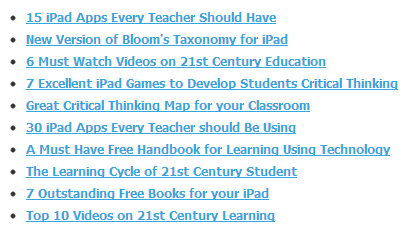
This link was to a page for The Top 10 Articles for Last Month off the Educational Technology and Mobile Learning page, and I've found some really useful tools and sites there in the past. Much to my disappointment, however, many of the pages or tools that were listed in the top 10 were for iPads! This keeps happening to me again and again, and quite frankly, it's giving me a complex.
I don't have an iPad; they're crazy expensive! My district doesn't plan on giving me an iPad (elementary classrooms won't benefit from them--their words, not mine). I want more tools that don't need an iPad! (And more tools that are web-based since I don't have "administrator privileges" to install tools on my computer.)
Are you with me??
Subscribe to:
Posts (Atom)